AI-POWERED ANDROID SETUP
Diagnostic upload, explained simply.
Your phone supplies the technical evidence; you choose when to submit it for AI-assisted adaptation.
Open the illustrated setup guide →What is uploaded?
- Device model, chipset, Android and firmware versions.
- Permission, connection, module and audio-capability status.
- A limited set of recent, redacted app diagnostic logs.
This request excludes SMS content, phone numbers, recordings, transcripts and credentials.
After the current test app is opened, linked to your account and online, it automatically uploads redacted operational diagnostics. An AI adaptation request still needs your separate confirmation.
Automatic checks do not place calls or start recording. Recording for a later call test requires separate consent.
Start self-service diagnostics here.
Open Audio assessment & adaptation
Find this entry on the Android server home screen. Confirm that your account is bound and the service is online.
Choose Submit diagnostics for analysis
Read the upload details, select the consent checkbox and confirm Upload and request analysis.
Follow your request
AI analyzes the submitted evidence. If more information is needed, follow the app’s instructions; no need to send a full system log.
Automatic checks and background diagnostics do not submit an adaptation request for you. Complete the consent-and-submit step to begin.
See where to tap.
App interface examples. Select an image to enlarge it and read the details.
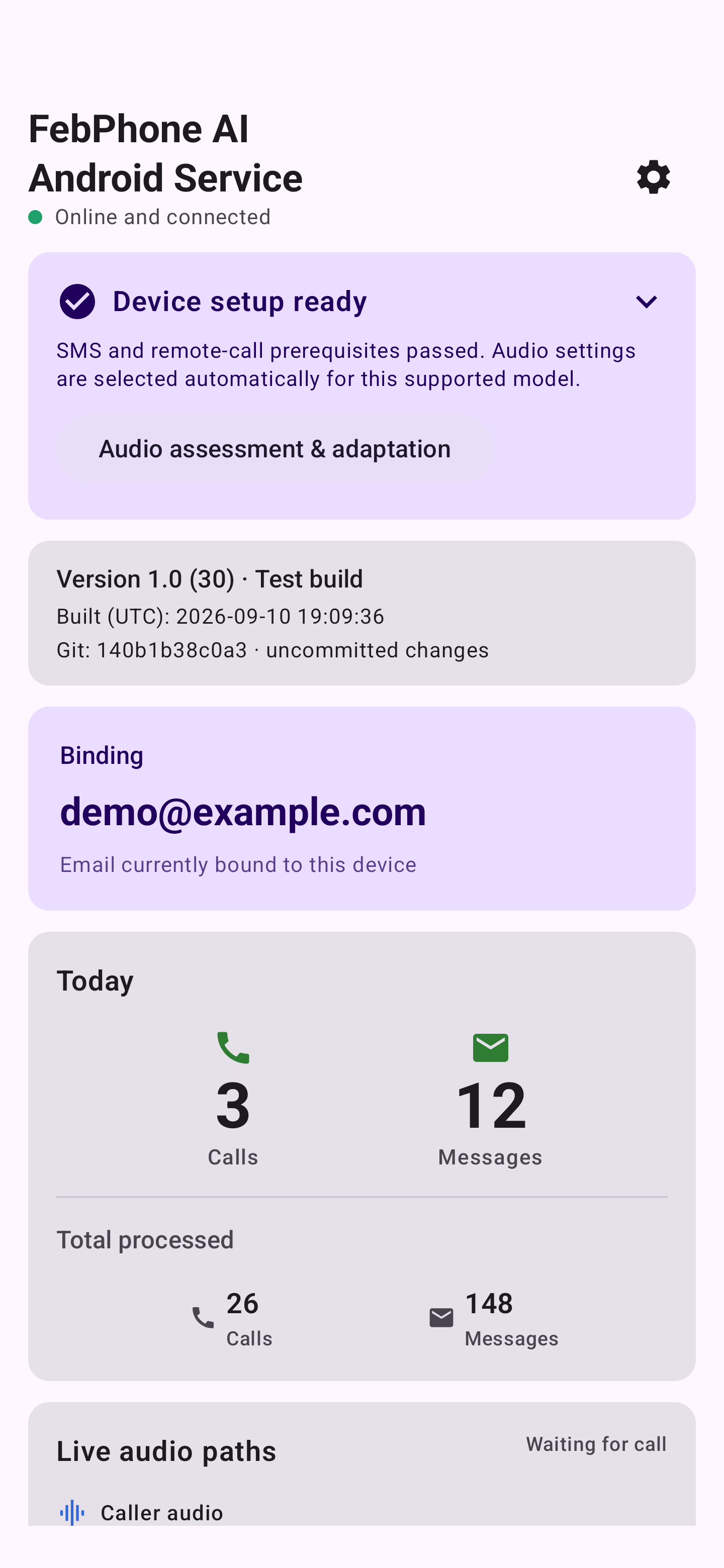
Your Android service phone
Actual App interface with synthetic demonstration data.
View full size ↗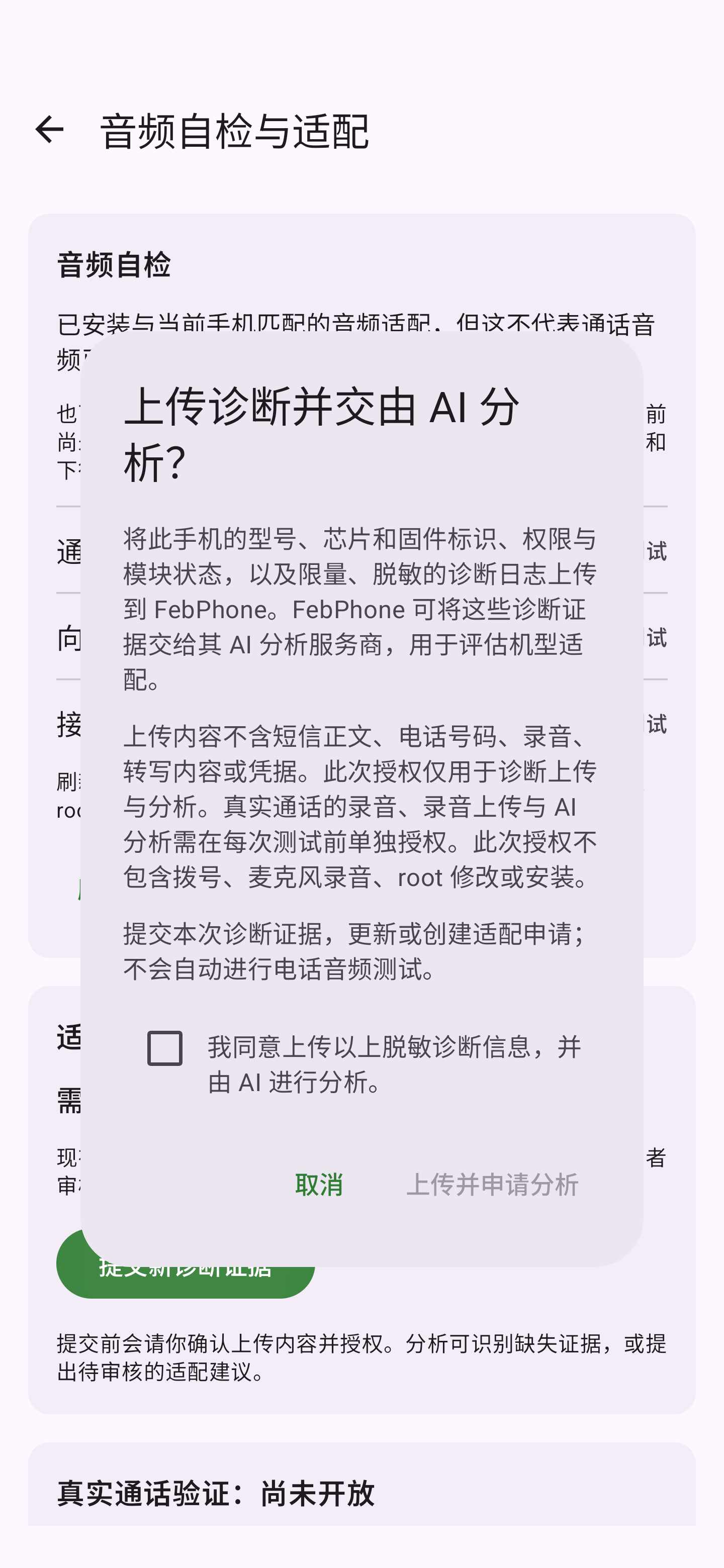
Confirm diagnostic upload contents
Diagnostic upload consent example from the current download. Review the device information and redacted logs, then tick the consent box and submit. Follow the instructions in your assigned version for subsequent installation and call testing. Actual App interface with synthetic demonstration data.
View full size ↗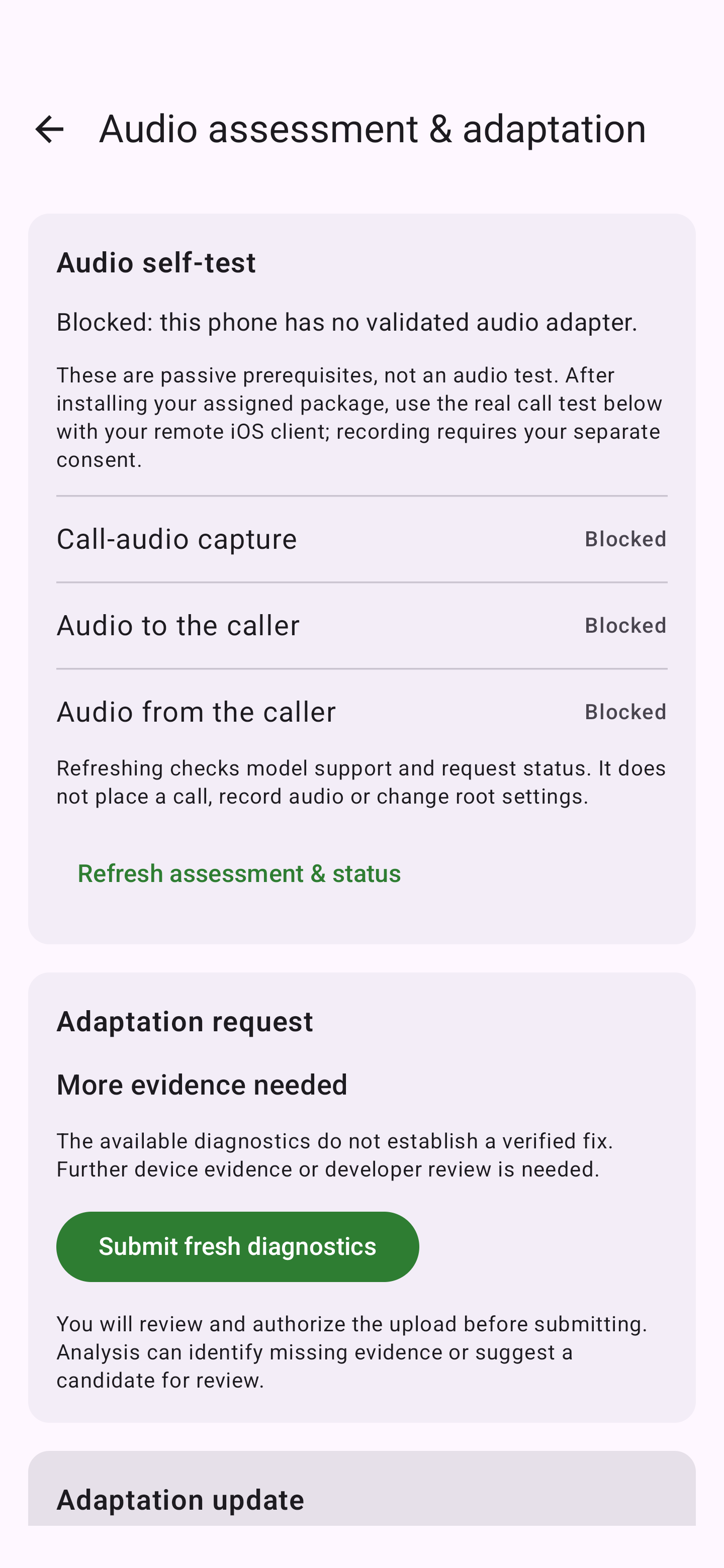
Audio checks and adaptation requests
Audio capture, uplink and downlink checks, with guidance when more diagnostics are needed. Actual Android interface with isolated demonstration data, not a live test result.
View full size ↗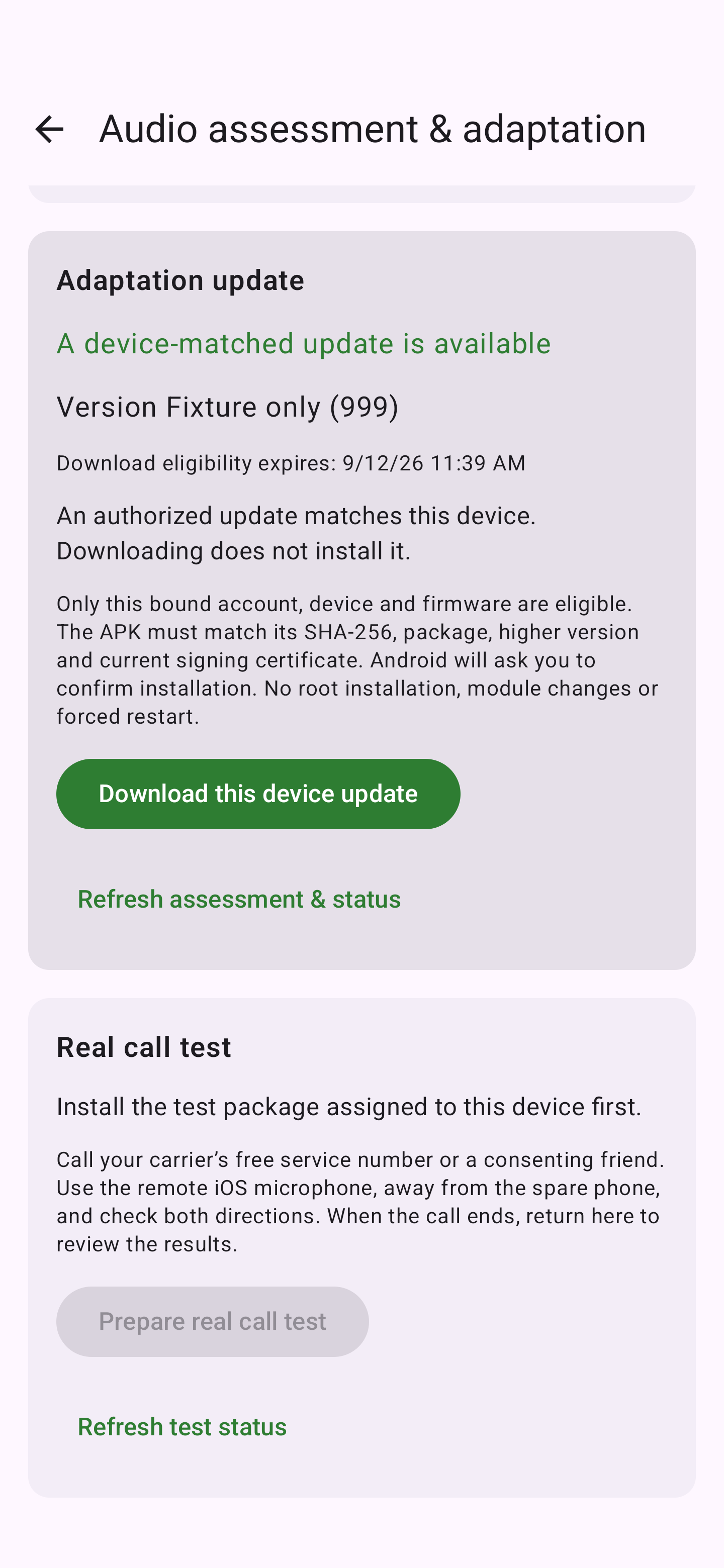
Updates matched to your device
Download a device-matched test package, then confirm installation in Android before testing again. Actual interface with demonstration data; “Fixture only (999)” is not a released version.
View full size ↗AI helps you move from diagnostics to a tested version.
When an adaptation candidate is ready and reviewed, a dedicated test build can be compiled and you will be notified. Follow that version’s update and testing instructions.
The current general download starts with a diagnostic request. Later update and call-test screens depend on the dedicated version you receive. Adaptation time depends on the hardware and test results. Downloading or compiling a build does not by itself mean call audio has passed.
Version verification
Follow the matching update instructions and install over the existing app. Keep your account binding and data; do not uninstall or clear app data.
Current download options, versions and file checksums are maintained together in the download center.
Open download center →